Using custom items gives you more creative freedom and helps you design unique and beautiful scrapbook pages.
Step 1: Open Your Project
Open My Memories Suite on your computer. You can either create a new project or open an existing project where you want to apply the clipping mask effect.
Step 2: Select Your Photo Mask from the Embellishments Section
Click on the Embellishments section. Next, click on the Custom button. A new screen will open. From there, select your desired shape or photo mask.
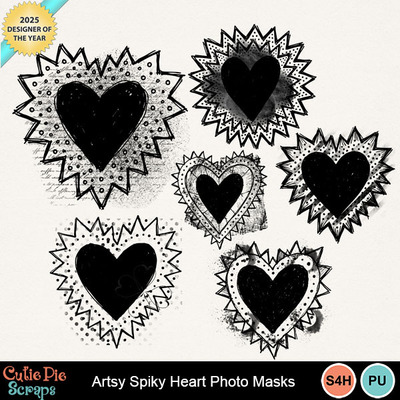
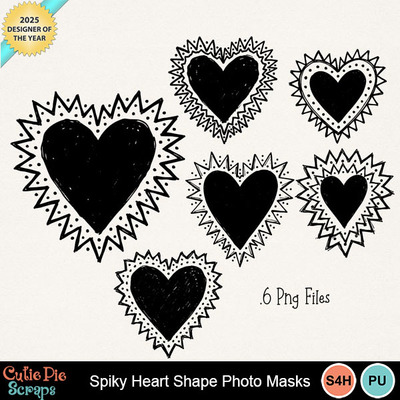
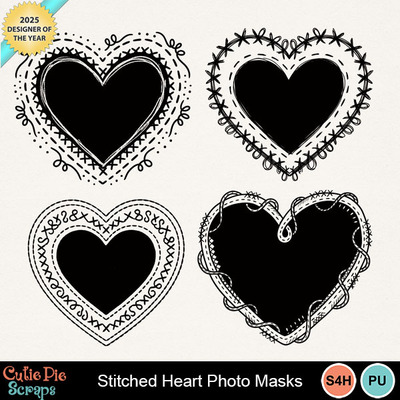
Note: The Embellishments section in this tutorial uses my Photo Masks from the February 2026 collection.
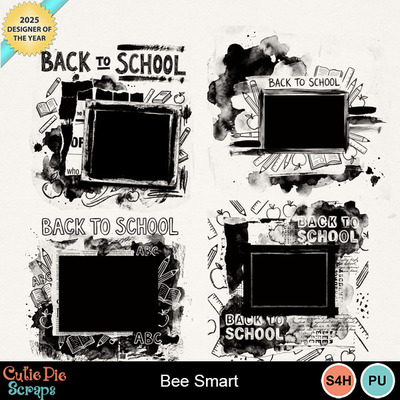
Choose a shape (such as a circle, star, or heart) or a decorative photo mask from your kit. Place it on your page where you want the photo to appear.
After you have placed the photo mask or shape on your page, go back to the Embellishments section and click on the Photo button. Now select the photo that you want to use.
You can see that your photo is now beautifully clipped inside the photo mask. This is the magic of My Memories Suite.
Step 4: Adjust the Photo
Double-click on the photo, and a new window will open. You can move the photo to adjust its position inside the mask. Once you are satisfied, click the OK button in the window.
Your beautiful page is now ready! After this, you can add borders, flowers, or any other embellishments , shadows etc you like.
If you found this tutorial helpful, try using this clipping mask technique in your next scrapbook project. If you have any questions, feel free to leave a comment below.
More My Memories tutorials are coming soon!